Blog
How Nigerian Fans Can Reduce Mobile Data Costs While Streaming Football Online
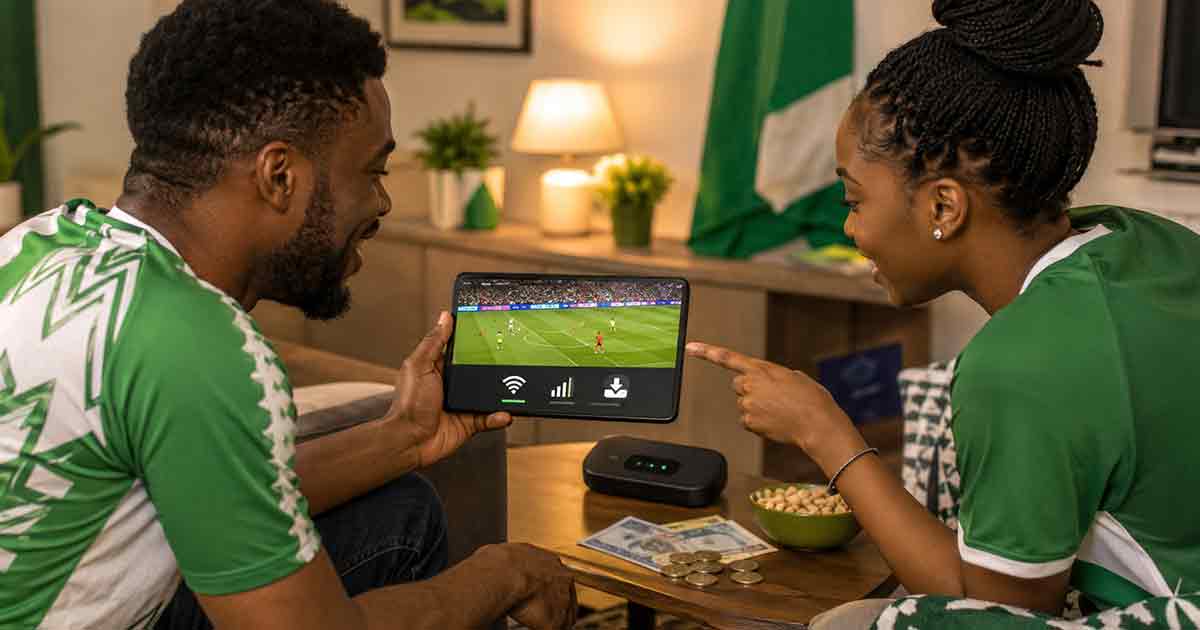
For many Nigerian fans, the real cost of streaming football is not only the subscription. It is also the mobile data. A match may look affordable until the phone starts warning that the bundle is almost finished. During World Cup season, that pressure becomes worse because fans stream more video, join more group calls, watch highlights, follow social media reactions, and download more apps.
This guide is not about finding illegal streams or bypassing paid services. Those shortcuts can expose your phone, payment details, and accounts to malware or phishing. The safer goal is to reduce waste: use the apps you already have more carefully, plan your data before match day, and understand which settings drain bundles fastest.
Why Data Feels More Expensive During Football Season
Mobile data in Nigeria is already a major household cost. Tech and telecom discussions often point to the same pattern: video, social media, background app activity, automatic updates, and faster networks can burn through bundles quickly. A phone may look idle while apps sync messages, refresh feeds, preload videos, or download media in the background.
Football season adds another layer. Fans do not only watch the live event. They also check lineups, stream pre-match shows, scroll reactions, watch short clips, join WhatsApp groups, post status updates, and replay goals. Each small action may look harmless, but together they can turn one evening into several gigabytes of usage.
Start With Video Quality
The biggest data decision is video quality. High definition looks better, but it costs more data. If you are watching on a small phone screen, you may not need full HD. Lowering the stream to 480p or standard definition can make a meaningful difference, especially if you watch several matches in one week.
Before match time, open the streaming app and check whether it allows manual quality selection. Do not wait until the match begins. Some apps automatically choose the highest quality your network can support. On a strong 4G or 5G connection, that can drain your bundle faster than expected.
Use This Data Planning Table
| Action | Data risk | Safer habit |
|---|---|---|
| Streaming in HD or 4K | Very high | Use 480p or standard definition on mobile data |
| Autoplay on TikTok, Instagram, and YouTube | High | Turn off autoplay or use data saver mode |
| WhatsApp auto-downloads | Medium to high | Disable auto-download for videos and documents |
| App updates during match time | High | Set updates to WiFi only |
| Group video calls before or after matches | Medium | Use audio calls or short calls when on mobile data |
| Streaming on a smart TV through hotspot | Very high | Use WiFi or reduce TV stream quality |
Check Background Data Before Match Day
Many data problems come from apps that are not part of the match. Open your phone settings and check data usage by app. If one app is consuming too much in the background, restrict it. This is especially important for social media, cloud photo backups, app stores, email attachments, and file-sharing apps.
On Android, look for data saver, background data restrictions, and app-specific usage controls. On iPhone, check mobile data usage, turn off data for apps you do not need, and disable automatic downloads over cellular. The names may differ by device, but the idea is the same: only essential apps should have access during a high-data period.
Control WhatsApp and Telegram Groups
Football groups are fun, but they can destroy a data plan. During major matches, people send clips, memes, voice notes, stickers, screenshots, and documents. If auto-download is on, your phone may save everything even when you did not ask for it.
Go to WhatsApp settings and turn off media auto-download for mobile data. Do the same for Telegram if you use it. You can still download important clips manually. The difference is control. You decide what enters your phone instead of allowing every group to spend your data.
Be Careful With Hotspot Streaming
Using your phone as a hotspot for a laptop or smart TV can drain data much faster than watching directly on the phone. Large screens often request higher video quality. Laptops may also run background updates, cloud sync, and browser tabs at the same time.
If you must use hotspot, close unnecessary apps on the connected device, reduce video quality manually, and set the connection as metered where possible. For Windows laptops, a metered connection can reduce some background downloads. For smart TVs, check video quality settings inside the app.
Download Legal Content on WiFi When Possible
Some platforms allow legal downloads for offline viewing. This may not apply to live matches, but it can help with previews, documentaries, or post-match shows. If your office, school, home, or trusted public WiFi is stable, use it for heavy downloads before you rely on mobile data.
Do not use random open WiFi for payments or account logins. If you must connect to public WiFi, avoid entering card details, wallet passwords, or sensitive account information. Saving data should not create a bigger security problem.
Do Not Let App Stores Spend Your Bundle
App updates are useful, but timing matters. During football season, many users install streaming apps, sports apps, VPNs, browsers, betting apps, or social media tools. Some of those apps can update automatically in the background. Set Google Play Store and Apple App Store to update over WiFi only.
Also avoid installing random APKs or unknown streaming apps that promise free access. Apart from copyright and safety issues, these apps may contain aggressive ads, trackers, or malware. A cheap-looking stream can become expensive if it steals your login or payment information.
Use Built-In Data Tools Before Third-Party Apps
Your phone already has useful data controls. Start there before installing another data manager. Android and iOS both show which apps consume the most mobile data. Many Android phones also include daily data limits, warnings, and data saver modes.
If you choose a third-party data tracking app, check its permissions carefully. A data monitor should not need unnecessary access to your contacts, messages, or payment apps. Keep the setup simple. The goal is visibility, not giving another app too much control over your phone.
Plan Watch Parties Around Shared Costs
If several people want to watch together, one stable screen and one planned internet connection may be cheaper than everyone streaming separately. A watch party can reduce duplicate data usage, but only if the group agrees on the cost in advance. Decide who pays for data, subscription, power backup, food, and venue before the event begins.
For small groups, a paid legal streaming plan plus shared WiFi may be better than five people buying separate mobile bundles. For larger groups, make sure the subscription terms allow the intended use. Do not resell access, share passwords carelessly, or promote unauthorized public viewing if the service terms do not permit it.
A Match-Day Data Checklist
- Set streaming quality before the match starts.
- Turn off social media autoplay.
- Disable WhatsApp and Telegram media auto-downloads.
- Set app updates to WiFi only.
- Restrict background data for non-essential apps.
- Close cloud backup apps before hotspot streaming.
- Monitor data usage after the first 15 minutes.
Final Takeaway
Nigerian fans can reduce mobile data costs during World Cup season without using unsafe shortcuts. The main fixes are simple: lower video quality, stop background data, control group downloads, avoid unnecessary hotspot use, and plan shared viewing costs. Football streaming will still consume data, but it should not consume your whole budget without warning.