Blog
How to Spot a Fake iPhone Before Buying in Nigeria: Verification Checklist
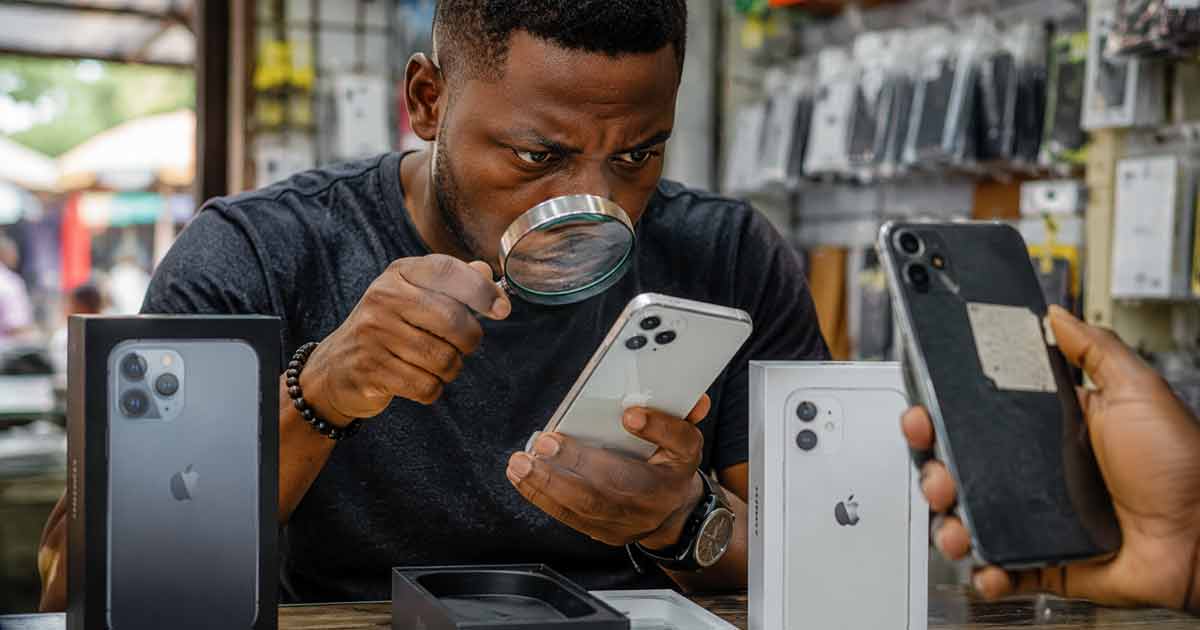
Why Verification Matters When Buying iPhones in Nigeria
The Nigerian phone market is flooded with devices at every price point. Some are genuine, some are refurbished, and some are outright fakes designed to look identical to the real thing. The price difference between a genuine iPhone and a convincing clone can be minimal, which makes visual inspection alone unreliable.
A few minutes of verification before handing over your money can save you from ending up with a device that cannot update, lacks proper security features, or stops working within weeks. Here is a systematic approach to confirming authenticity.
Check 1: iCloud Activation Lock Status
This is the most critical check. iCloud Activation Lock ties an iPhone to the previous owner's Apple ID. If it is still active, you cannot set up or use the phone normally, making it essentially a paperweight.
How to verify:
- Ask the seller to reset the device or start the setup process in front of you.
- If the phone asks for someone else's Apple ID and password during setup, the lock is still active. Walk away.
- The device should open to the normal "Hello" setup screen without requesting any login credentials.
Never accept a seller's promise to "remove it later." If they cannot sign out of their Apple ID before the sale, the phone is either stolen or they are not the actual owner.
Check 2: Battery Health
Apple includes a built-in battery health indicator that is difficult to fake on genuine devices.
Navigate to Settings → Battery → Battery Health & Charging. You should see:
- Maximum Capacity percentage (anything above 80% is acceptable for used devices)
- A message about peak performance capability
If the Battery Health section is missing entirely, or the information looks unusual, the device may not be running genuine iOS. On authentic iPhones, this feature is always present on iOS 11.3 and later.
Check 3: Apple Warranty Status
Every genuine iPhone has a serial number that Apple recognizes. Verifying it takes under a minute:
- Go to Settings → General → About and copy the serial number.
- Visit Apple's official coverage check page and enter the serial number.
- The page should display the correct model name, purchase validity, and warranty coverage status.
If the serial number is not recognized, or the model shown does not match the phone in your hand, something is wrong. This check is especially valuable for newer iPhones where warranty should still be active.
Check 4: Physical and Hardware Inspection
Genuine iPhones have precise build quality that clones struggle to replicate perfectly. Examine:
- Apple logo: Should be perfectly centered and flush with the back panel. No raised edges or slight misalignment.
- Camera module: Lenses should be perfectly aligned within the housing. Check for dust or uneven gaps.
- Speaker grills: Uniform hole sizes and spacing. Fakes often have irregular patterns.
- Buttons: Should feel firm with a satisfying click. Mushy or loose buttons indicate poor build quality.
- Screen quality: Genuine iPhone displays are sharp with accurate colors. If the screen looks washed out or has visible pixels at normal viewing distance, it is likely a fake panel.
Test these functions before paying:
- Front and rear cameras (including Portrait mode if supported)
- Face ID or Touch ID enrollment
- Both speakers (play audio and check for distortion)
- Charging port with a cable
- Wi-Fi and cellular connectivity
Where to Buy Safely in Nigeria
Avoid Suspiciously Cheap Deals
If a price is significantly below market rate, there is a reason. Compare prices across multiple sellers before committing. An iPhone 15 selling for ₦200,000 below the going rate is almost certainly problematic.
Choose Verified Sellers
Buy from established phone stores with verifiable customer reviews or trusted online platforms. Verified sellers have reputations to protect and are less likely to risk selling fakes.
Request Device History
Ask whether the phone is brand new, refurbished, or previously used. Confirm if major parts (battery, screen) have been replaced. Honest sellers provide this information upfront.
Always Test Before Payment
Never pay for an iPhone without physically testing it first. Open settings, verify device information, test all hardware functions, and run through the checks above. A seller who refuses to let you inspect the device is a red flag.
Quick Verification Summary
Before paying for any iPhone in Nigeria, run through this sequence: confirm iCloud lock is removed, check battery health in settings, verify the serial number on Apple's website, and physically inspect the build quality and hardware functions. All four checks together take less than five minutes and dramatically reduce your risk of buying a fake or problematic device.